


OctaneRender for DAZ Studio 2025.6.0 - 408 [Stable]

DAZ Studio Integrated Plugin (Integrated Plugin maintained by OTOY)

Moderator: BK

Forum rules
Please keep character renders sensibly modest, please do not post sexually explicit scenes of characters.
Post Reply
BK
OctaneRender Team
Posts: 1526
Joined: Mon Oct 31, 2016 7:54 pm

This is the recommended thread for downloading, and posting any questions, suggestions or support queries for OctaneRender for DAZ Studio - TEST (ie. pre-release) and STABLE releases.

SOLUTIONS TO COMMON ISSUES

1) Make sure your NVIDIA drivers are up to date.

2) Make sure you are running the latest version of the OctaneRender for DAZStudio plugin.

3) If you experience a DAZStudio crash - deleting C:\Users\[username]\OctaneRender\Data\OctaneRender_settings.oczdb may resolve the issue.
This also resolves the "COULD NOT INITIALISE IN-MEMORY DB!" error on startup and a number of other issues.

4) If the Save button is disabled when using the Final button - disable the Final button and in Render settings select the SuperScope (2:1) Size / aspect ratio and drag the Viewport height or width until you reach required resolution.

5) If rendering an animation fails after 11 frames - make sure the DAZStudio viewport is visible when you render the animation.

6) If Octane materials are not loading when you load a previously saved scene - tick Preferences->Load OctaneRender materials from .duf user presets. If ticking this option does not stick between DAZStudio restarts, delete OctaneRender_settings.oczdb as per NOTE 3 above.

7) If you get a "Could not save a frame for X times!" - please search the forum for potential solutions.

8) If you get a "Bogus Scene Path" error - this is due to having an apostrophe in the filepath of a texturemap (so store your textures in foldernames which do not have apostrophes).

9) Octane panel title bar is off the screen and cannot be closed - click anywhere on the Octane panel and then press Alt-F4.

10) Rendering animation results in the scene emitter intensities changing - this is because rendering animations is done in "Final" mode, where meshes are merged. To resolve this, UNTICK the Preferences->Use Combined Mesh, or ENABLE the Surface Brightness pin on each of the emission materials in the scene.

11) Denoiser is not working - make sure you have a graphics card selected for Denoising in the System tab->Open Device Settings window, and that you are using the Path Tracing kernel.

12) Render artifacts near eyebrows - this is due to the eyebrow geometry going inside the head mesh surface. So morph, move or scale the eyebrows so they do not intersect with the head mesh.

13) Octane panes do not appear on the screen (ie. they open off the screen) - Main Menu Bar->Window->Workspace->Select Layout->Accept (you might choose a different layout to the current layout to make this work).


KNOWN ISSUES AWAITING RESOLUTION

1) Panoramic camera and OSL nodes are not currently supported.
2) Templating is not currently working for specular and roughness maps from Iray materials. - FIXED (please report any issues)
3) UDIM Tiles are not currently supported. - FIXED (please report any issues)
4) Some of the newer OctaneRender material and texture types are not supported. - FIXED (please report any issues)
5) VDB volume and volumetric spotlight nodes are not currently supported.

DAZ Studio Version
DAZ Studio 4.8 or later on Windows 8, 10 or 11 64bit

Important notes:
[*] The minimum NVIDIA driver version required is R528 (R572 for GeForce RTX50 Series)..

Network Rendering

For Network Rendering, you must use the OctaneRender Studio+ Node release from the Octane Standalone forums/download page which matches the exact Octane version of the plugin you are using. This version matches OctaneRender Studio+ 2025.6 Render Node builds.

Support Issues
If you have a support issue, pls provide the following information:
- Operating System (ie. Win 8, 10, 11)
- Amount of RAM
- Graphics Card(s) - model (ie. GTX 580, 3GB)
- Nvidia driver version
- DAZ Studio version

- The most important part of resolving a problem is being able to reproduce that problem. So please provide as much detail as possible in order for me to do this, and if the problem is specific to the scene, send me the scene.

Change logs
  • Integrated VDB
  • Minor bug fixes and improvements...
Workflow to create OctaneVDB>Load the VDB via Parameters>Apply Volume medium>Render

The format of file names should be like this: the frame number should be padded by zeroes in front, and surrounded by dots. Like some_file.00014.vdb, some_file.00118.vdb, etc. Just select the first file of the sequence into a "VDB file" property.
There is one more property added to a new VDB node: "Frame offset". This may be needed if you have e.g. VDB-files' sequence starting with 0001, but your first frame to render is "0". In this case you set the frame offset to "1".

Image

Image

Image

Please keep in mind, some VDB objects are really heavy for GPU-rendering. Thus, to not get your DAZ or other Windows processes crashed, it is a good idea to have additional GPU only dedicated for rendering, and all the GPUs that have monitors connected to them - completely disabled for rendering in Octane "Device Settings". Something like this:


Image


FAQ
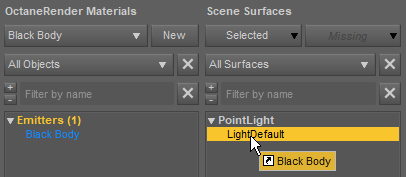
Q: How to change light brightness/color?
A: You need to assign a material to the light and adjust the emission of the material. You can do it either by dragging a material to the light in the Materials tab (similar to assigning materials to geometry) or by right clicking on the light and selecting menu item under "Create as new light source".
Image

Q: How do I enable analytic light?
A: Create a point light (or linear point light, they are the same). Then turn on "use analytic light" in the OctaneRender settings.
Image

Q: I selected "rectangle" light geometry, but light didn't change
A: "rectangle", "disc" and "cylinder" geometries are only supported for analytic lights

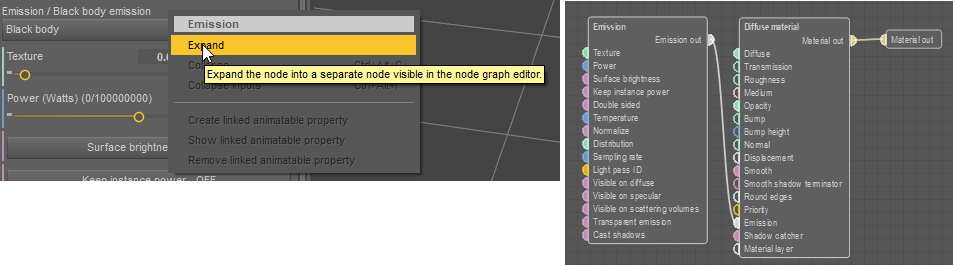
Q: I assigned emission material to the light, but it's still not visible
A: If the light is analytic, make sure the emission node is expanded (i.e. is a separate node, connected to emission pin). It's required for analytic lights to work.
Image

Q: How to make light beams work?
A: 1) Set the light to be analytic, rectangle or disc shape, enable "use in post volume".
2) In render settings enable post processing and light beams


Download Links

Please feel free to report any issues you encounter.


Happy rendering
Your OTOY team
Kind Regards

bk3d
User avatar
JimStar
OctaneRender Team
Posts: 3841
Joined: Thu Jul 28, 2011 8:19 pm
Location: Auckland, New Zealand

Notes about the VDB animation-loops feature.
There is a "Loop from" property in Octane VDB nodes: it is "-1" by default (no loops), but if it is set to some sequence-number, then the animation will be looped up to this sequence-file and begin again after that. If you select a VDB file from a sequence, then this property will be set automatically to the last number in the sequence.

1.png
1.png (12.49 KiB) Viewed 227 times
User avatar
Sorel
Licensed Customer
Posts: 273
Joined: Tue Feb 25, 2014 5:22 pm

Thank you for the update! Do you know if you will attempt to get strand hair working with the octane hair geometry again or is it just not possible with the current sdk? @jimstar
Tugpsx
Licensed Customer
Posts: 1172
Joined: Thu Feb 04, 2010 8:04 pm
Location: Chicago, IL
Contact:

Thanks for update, this should work better on sample vdb scenes.
This is actually a Max file but has a good VDB for testing

Image
download/file.php?id=96090
Win 11 64GB | NVIDIA RTX3060 12GB
User avatar
Sorel
Licensed Customer
Posts: 273
Joined: Tue Feb 25, 2014 5:22 pm

Never mind I found the Octanerender VDB under a different menu.
User avatar
Sorel
Licensed Customer
Posts: 273
Joined: Tue Feb 25, 2014 5:22 pm

Ok I think I've found a bug in this version. None of the fstop functions work on the camera.
BK
OctaneRender Team
Posts: 1526
Joined: Mon Oct 31, 2016 7:54 pm

Tugpsx wrote: Mon May 11, 2026 5:15 pm Thanks for update, this should work better on sample vdb scenes.
This is actually a Max file but has a good VDB for testing

Image
download/file.php?id=96090
Hi Tugpsx ,

Thank you so much for the file.
Could you please reexport and share with Density channel, Fuel, and Temperature?

cheers
Kind Regards

bk3d
jmdarko
Licensed Customer
Posts: 8
Joined: Tue Sep 18, 2018 10:38 pm

Hello! Thank you for keeping this plug-in updated! I have some observations, problems and suggestions

First, I since the last update I haven't encountered that bug that makes characters, lights, environment to be misplaced when loading a scene, needing to reload it often causing it to crash while doing it; I tried with a lot of old scenes and looks like it's fixed now!

For suggestions, I would like a button or option for the whole materials menu to be "Expanded" as default as it used to be in past version, With the recent update to it, I have to constantly be expanding each material I am editing and it autocollapses when I select a different one causing Material editing to be really time consuming.

For bugs I have encountered I have encountered most are old bugs that I think are easy to replicate but it might be just my install:
-Clicking things on the viewport with the "Select DAZ surfaces..." tool activated often causes my DAZ, specifically in heavy scenes.
-If the viewport is active/Not-Minimized, Inputting with the keyboard on the Nodegraph editor is not possible, Needing to close it or minimize it.
-Clicking the Textures tab on heavy scene sometimes causes It to bug out and Display the texture tab over other tabs, making it impossible to use other tabs until resetting Daz
-I don't know if this is a bug or just me not knowing how to turn it off but selecting an area with the ''Set Rendering film region...'' tool makes it so only the selected area renders (Like it should) but it stays even after deactivating the tool, My way to deal with this is either selecting the whole scene with and deal with the yellow ant trail around it or using the "Limiting the Rendering region" tool, select the whole viewport, then deactivate the tool
Tugpsx
Licensed Customer
Posts: 1172
Joined: Thu Feb 04, 2010 8:04 pm
Location: Chicago, IL
Contact:

jmdarko wrote: Fri May 15, 2026 12:16 am Hello! Thank you for keeping this plug-in updated! I have some observations, problems and suggestions

First, I since the last update I haven't encountered that bug that makes characters, lights, environment to be misplaced when loading a scene, needing to reload it often causing it to crash while doing it; I tried with a lot of old scenes and looks like it's fixed now!

For suggestions, I would like a button or option for the whole materials menu to be "Expanded" as default as it used to be in past version, With the recent update to it, I have to constantly be expanding each material I am editing and it autocollapses when I select a different one causing Material editing to be really time consuming.

For bugs I have encountered I have encountered most are old bugs that I think are easy to replicate but it might be just my install:
-Clicking things on the viewport with the "Select DAZ surfaces..." tool activated often causes my DAZ, specifically in heavy scenes.
-If the viewport is active/Not-Minimized, Inputting with the keyboard on the Nodegraph editor is not possible, Needing to close it or minimize it.
-Clicking the Textures tab on heavy scene sometimes causes It to bug out and Display the texture tab over other tabs, making it impossible to use other tabs until resetting Daz
-I don't know if this is a bug or just me not knowing how to turn it off but selecting an area with the ''Set Rendering film region...'' tool makes it so only the selected area renders (Like it should) but it stays even after deactivating the tool, My way to deal with this is either selecting the whole scene with and deal with the yellow ant trail around it or using the "Limiting the Rendering region" tool, select the whole viewport, then deactivate the tool

For this one if you select the region button again and then click your Octane viewport outside the selected area, it will switch back to the full viewport.
Win 11 64GB | NVIDIA RTX3060 12GB
Tugpsx
Licensed Customer
Posts: 1172
Joined: Thu Feb 04, 2010 8:04 pm
Location: Chicago, IL
Contact:

BK wrote: Thu May 14, 2026 11:03 pm
Tugpsx wrote: Mon May 11, 2026 5:15 pm Thanks for update, this should work better on sample vdb scenes.
This is actually a Max file but has a good VDB for testing

Image
download/file.php?id=96090
Hi Tugpsx ,

Thank you so much for the file.
Could you please reexport and share with Density channel, Fuel, and Temperature?

cheers
Here is a small section from a fire sim with density, Fuel, Temperature
DefaultFire.00029.7z
Small fire vdb from Embergen
(10.87 MiB) Downloaded 2 times
Win 11 64GB | NVIDIA RTX3060 12GB
Post Reply

Return to “DAZ Studio”