I make this post for those users not yet familiar with options available to work with licensed content.
How are licensed 3d assets categorized with metadata in a database system?
Categories
Each preset of a product is assigned to a
category.
There are
preset files for assets, materials, cameras, render settings etc.
In “
Files” view you can look at the individual presets of a selected category.
In “
Products” view you can browse the licensed content products.
-> Products may contain presets of different categories.
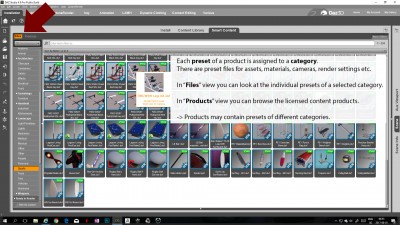
- Categories example - Files view - Sports
- - -
Metadata
To each preset file of a product
metadata is assigned.
With the help of metadata you can search you licensed content database.
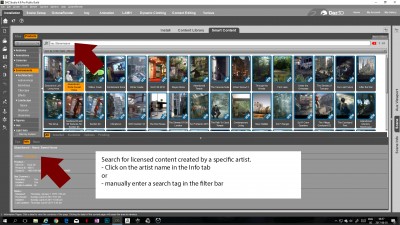
- Search for licensed content created by a specific artist
Categories also help you to navigate your licensed content products to find presets.
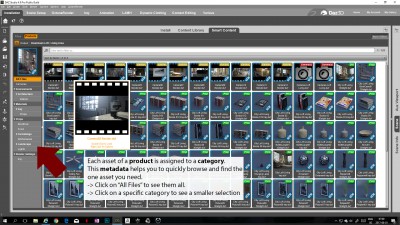
- Categories example - All preset files for one product
- - -
Database for installed and available products
If your collection of licensed 3d asset grows you may not want to install all of them on your computer.
Nevertheless, you may still want to have an efficient way to browse all licensed content you purchased to search an asset for your current project.
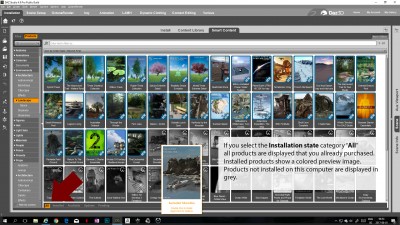
- Installation State example - Installed products colored - Available in gray
- - -
Working with presets
Presets help you to save valuable time setting up a scene.
Example - Combine camera and render settings presets
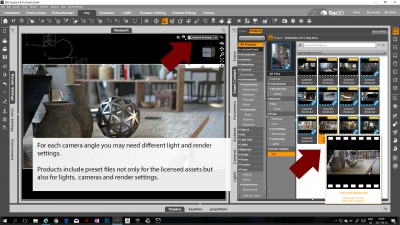
- Presets example - Automatically apply the rendersettings to match a preset camera
Example - apply alternative material options to a surface of a selected scene object
Because each preset has metadata applied it is possible to define
compatibilities between presets.
With an object surface selected in the scene any material options set as compatible are displayed in a dedicated surface tab.
This makes it possible to quickly test different looks of an asset and then switch to fine tuning the shader options if needed.
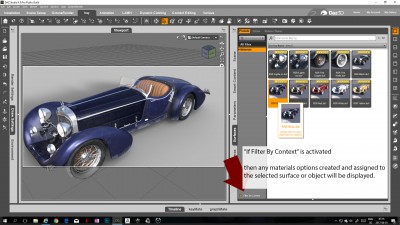
- Metadata example - material options are displayed when surface is selected
- - -